Unlock Hidden Android Auto & CarPlay Features: A Step-by-Step Guide
Introduction
Your car’s infotainment screen is more capable than you might think. Android Auto and Apple CarPlay come loaded with features that many drivers never discover—not because they’re hidden behind paywalls or buried in complex menus, but because no one tells you where to look. This guide will walk you through the simple steps to uncover and use these built-in functions, from customizing your home screen to enabling advanced voice controls. By the end, you’ll be getting the most out of your connected drive.
What You Need
- A compatible smartphone running Android 6.0+ (for Android Auto) or iOS 12+ (for CarPlay).
- A vehicle or aftermarket head unit that supports Android Auto and/or CarPlay (wired or wireless).
- A high-quality USB cable (for wired connections; wireless requires Bluetooth/Wi‑Fi).
- The latest version of Android Auto (on Android) or the iOS system update (for CarPlay).
- Any third‑party apps you want to use (e.g., Waze, Spotify, WhatsApp) installed on your phone.
- A safe, parked location to perform the initial setup and exploration.
Step‑by‑Step Guide
Step 1: Update Your Phone and Car System
Before diving into hidden features, ensure everything is current. On Android, open the Google Play Store, search for “Android Auto,” and tap Update if available. On iPhone, go to Settings > General > Software Update to install the latest iOS version. Also check your car’s infotainment firmware via the vehicle’s settings menu—many automakers release updates that improve CarPlay/Android Auto compatibility and unlock new options.
Step 2: Connect Your Phone to Your Car
Turn on your vehicle’s ignition and, if using a wired connection, plug your phone into a USB port labeled with a phone icon or the Android Auto/CarPlay logo. For wireless, ensure Bluetooth is enabled on your phone and select your car from the list of available devices. Follow any on‑screen prompts to complete pairing. Once connected, the familiar Android Auto or CarPlay interface should appear on your car’s display.
Step 3: Access the App Launcher and Settings
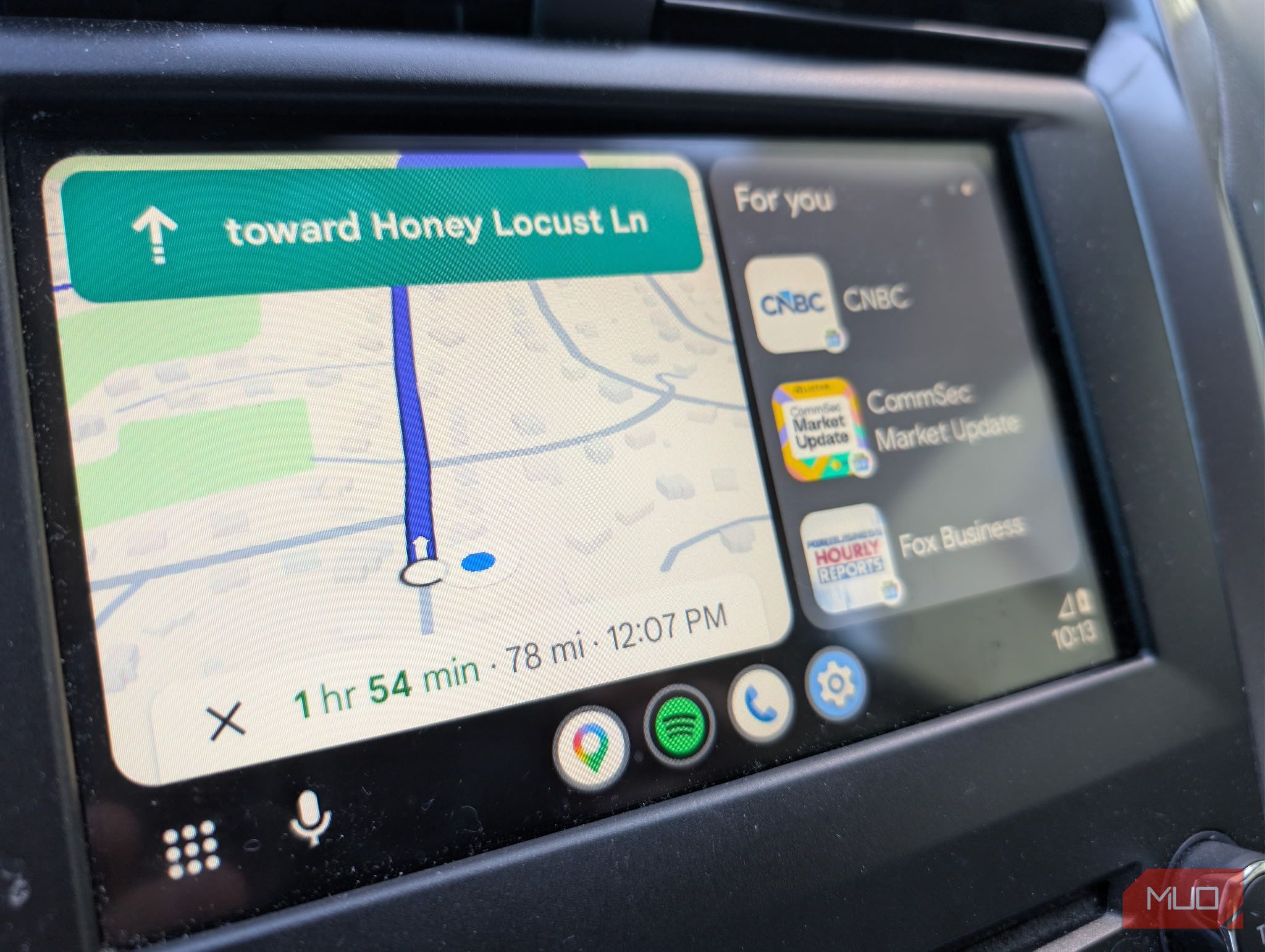
Look for the app draw icon (usually a grid of dots) on the main screen to see all installed compatible apps. Swipe or scroll to find Settings (gear icon). Tap it to open the configuration menu where you can adjust sound, display, and notification preferences.
Step 4: Customize the Home Screen and Dock
Both Android Auto and CarPlay let you reorder apps. In CarPlay, press and hold an app icon until it jiggles, then drag it to a new position on the home screen or dock. Android Auto allows drag‑and‑drop in the phone’s companion app or directly on the car screen (while parked). Move frequently used apps like maps, music, and messaging to the dock for quick access. This simple tweak saves taps while driving.
Step 5: Discover Hidden Productivity Features
- Split‑Screen Mode: In many cars, you can display two apps side‑by‑side. Try launching Maps and Music together—look for a split button on the bottom bar.
- Custom Wallpaper: CarPlay supports dynamic and static wallpapers. Go to Settings > Wallpaper (on your car’s screen) and choose from a selection or photos from your phone (CarPlay only).
- Assistant Shortcuts: Long‑press the home button (Android Auto) or the voice command button on your steering wheel to trigger Google Assistant or Siri. You can say “Take me home,” “Play my commute playlist,” or “Send a message to [name]” without touching the screen.
- Third‑Party Navigation: Both platforms now support apps like Waze and Google Maps for turn‑by‑turn guidance. If you prefer Waze, download it on your phone; it will appear in your app list (CarPlay requires iOS 13+).
- Do Not Disturb While Driving: Enable this in settings to silence notifications and auto‑reply to texts. Customize auto‑reply messages in your phone’s settings (Android: Digital Wellbeing; iOS: Focus).
Step 6: Master Voice Commands
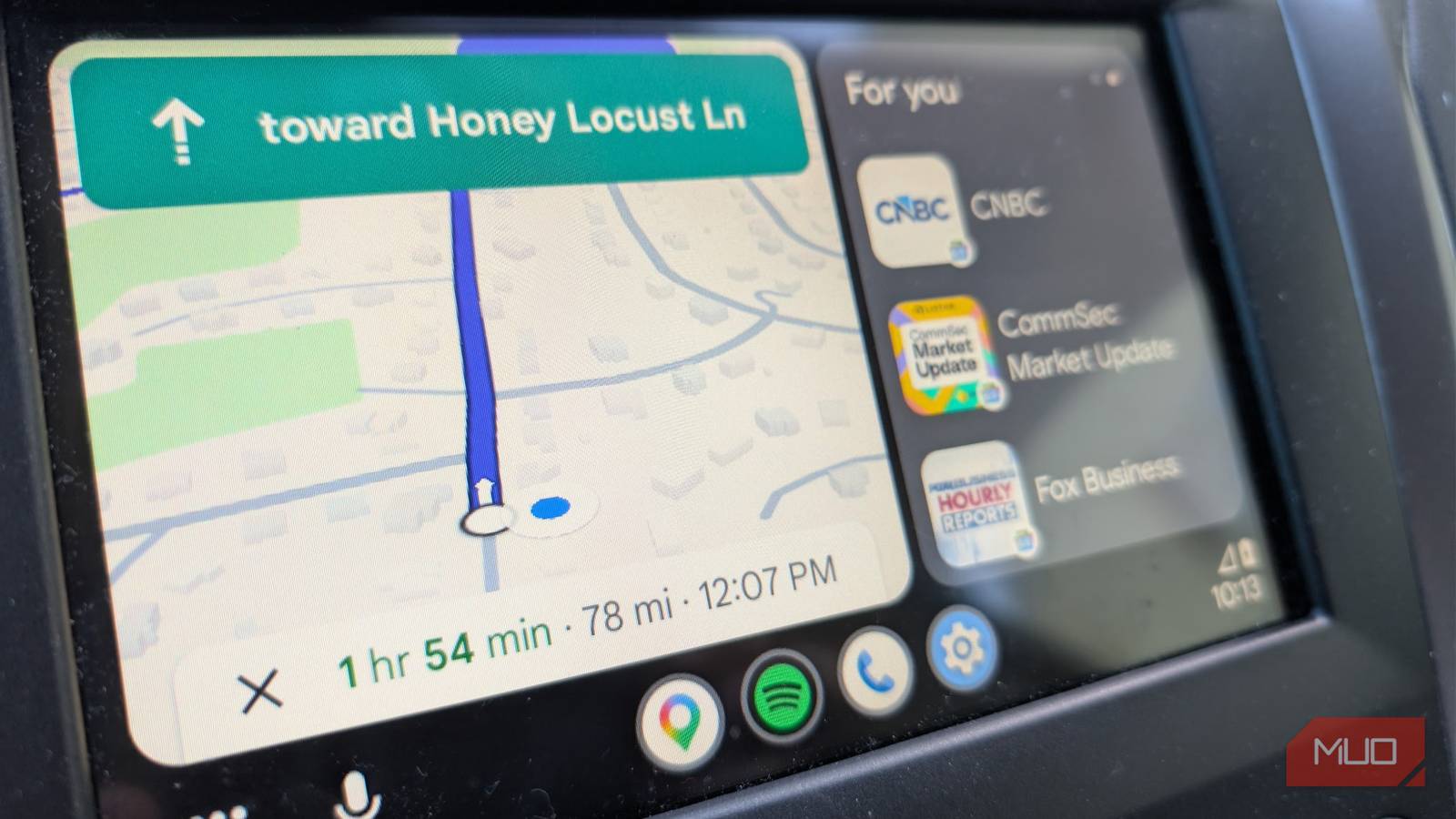
Voice control is the most underused feature. In Android Auto, say “Hey Google” (if enabled) or press the microphone icon. For CarPlay, press and hold the voice button or say “Hey Siri” (if enabled in settings). Practice commands like:
- “Navigate to the nearest gas station.”
- “Play the latest episode of [podcast].”
- “What’s my next meeting?” (with your calendar connected).
- “Call [contact] on speaker.”
Voice commands are safer and faster than tapping the screen.
Step 7: Explore App‑Specific Shortcuts
Many third‑party apps have hidden capabilities. For example:
- Spotify: Use “Hey Google/Siri, play my Discover Weekly” to jump to a curated playlist.
- WhatsApp: Have incoming messages read aloud and reply by voice without opening the app.
- Maps: In Google Maps, preview route alternatives by tapping the route card—you can avoid tolls or highways.
Tips for Maximizing Your Experience
- Keep your phone updated – New features are added regularly through app and OS updates.
- Use a quality cable – Wired connections can be finicky; a certified cable reduces disconnections.
- Experiment during parked stops – Never adjust settings while driving. Pull over to explore new menus.
- Check your car’s user manual – Some automakers add unique features (e.g., split‑screen, gesture controls) that aren’t part of the standard interface.
- Reset your layout – If you clutter the screen, you can always reset settings to default in the phone’s Android Auto or CarPlay app.
- Learn one new feature per week – Instead of trying to remember everything, focus on one trick (like customizing the dock) until it becomes automatic.