How to Maximize Samsung Galaxy Apps in a Stagnant Ecosystem
Overview
Samsung Galaxy phones are renowned for their premium hardware, but for many users, the real standout has been the software ecosystem. Samsung’s suite of apps—from the Gallery and Messages to Health and Bixby—often felt more polished and feature-rich than stock Android alternatives. However, recent years have seen these apps plateau in innovation. Updates are infrequent, new features are scarce, and some apps feel dated. This guide will help you evaluate your current Samsung apps, identify where they fall short, and implement strategies to keep your Galaxy experience fresh and efficient—without sacrificing the features you love.
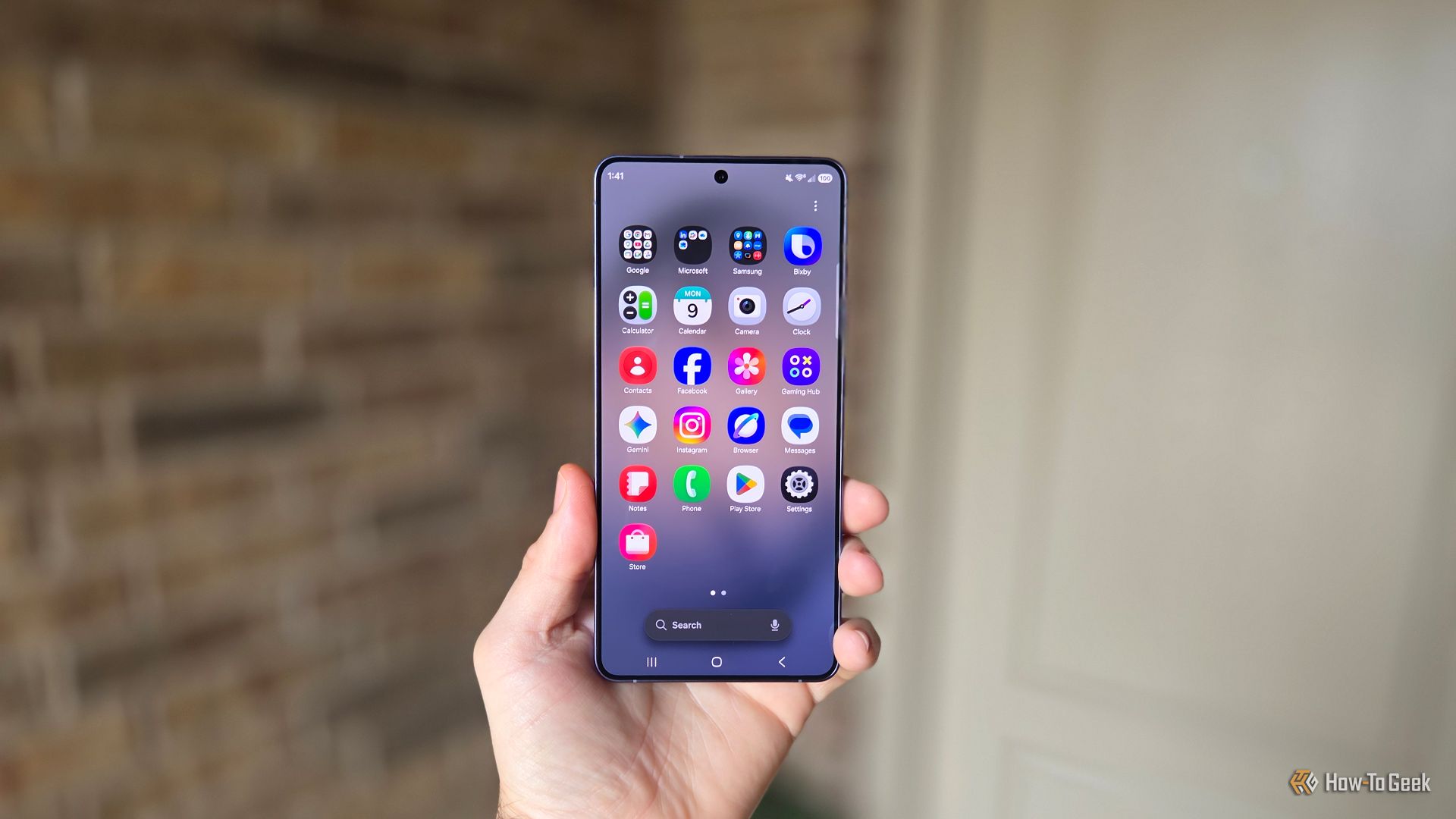
Prerequisites
- A Samsung Galaxy phone (any model running One UI 4.0 or later)
- Stable internet connection
- Basic familiarity with app settings and Galaxy Store
- Optional: Google Play Store access for third-party alternatives
Step-by-Step Instructions
1. Audit Your Current Samsung App Suite
Start by listing the Samsung apps you use daily. Common ones include:
- Samsung Messages – for SMS/MMS
- Samsung Gallery – for photo/video management
- Samsung Health – for fitness tracking
- Bixby – voice assistant
- My Files – file manager
- Samsung Notes – note-taking
- Internet – web browser
Open each app and note version numbers. Go to Settings > Apps > [App name] or check in the app’s “About” section. Record the date of last update (visible in Galaxy Store or Google Play Store list). This baseline helps you measure future improvements.
2. Compare Features with Fresh Counterparts
For each app, research recent updates from competitors. Example comparisons:
- Samsung Messages vs. Google Messages – Google now offers RCS, end-to-end encryption, and a web client. Samsung Messages lacks these unless carrier-enabled.
- Samsung Gallery vs. Google Photos – Google Photos provides advanced AI editing, smart search, and cloud backup. Samsung Gallery has robust local editing but limited cloud integration.
- Samsung Health vs. Google Fit – Samsung Health integrates deeply with Galaxy Wearables but misses cross-platform sync; Google Fit is simpler but syncs with more devices.
Document two to three missing features per app. This will guide your decision to stick or switch.
3. Check for Hidden Updates and Tweaks
Sometimes Samsung apps improve via Galaxy Store “Good Lock” modules or system-level updates. Follow these steps:
- Open Galaxy Store app.
- Tap the menu (three lines) and select Updates.
- Update all Samsung apps. Note that some updates are released only here, not on Google Play.
- Install Good Lock from Galaxy Store. This official Samsung app lets you customize One UI and often adds features to core apps (e.g., Gallery, Home Screen).
- Within Good Lock, explore modules like One Hand Operation+ (for gestures) and NotiStar (notification history).
These tweaks can rejuvenate the user experience without replacing apps.
4. Evaluate Performance and Bloatware
If Samsung apps feel sluggish or memory-intensive, consider alternatives. Use a benchmarking approach:
- Monitor battery usage under Settings > Device Care > Battery over 3 days.
- Compare RAM usage via Settings > Device Care > Memory. Note which Samsung apps are heavy.
- Use My Files to check app cache sizes. Clear caches for apps you rarely use.
If a Samsung app consistently drains resources, it may be time to disable it and switch to a lighter alternative like Microsoft Launcher (instead of One UI Home) or SwiftKey (instead of Samsung Keyboard).
5. Replace Stagnant Apps with Better Options
For apps that haven’t improved in years, swap them out. Use the table below as a guide:

| Stagnant Samsung App | Recommended Replacement | Key Benefit |
|---|---|---|
| Samsung Messages | Google Messages | RCS, web client |
| Samsung Gallery | Google Photos | AI editing, cloud sync |
| Bixby | Google Assistant | Contextual awareness, routines |
| Samsung Internet | Brave or Firefox | Privacy features, faster rendering |
| Samsung Notes | Microsoft OneNote or Notion | Cross-platform sync, rich formatting |
Before replacing, ensure you can transfer data. For example, use Samsung Smart Switch to export notes to OneNote. Set default apps in Settings > Apps > Choose default apps.
6. Combine the Best of Both Worlds
You don’t have to go all-in on replacements. Keep Samsung apps that still excel:
- Samsung Health – remains unmatched for Galaxy Watch integration and detailed workout tracking.
- My Files – its network storage support (SMB, FTP) is superior to stock file managers.
- Samsung Gallery – excellent for local editing and private folder (Secure Folder integration).
- Samsung Wallet – if NFC payments are smooth in your region, keep it.
Use Good Lock to remap the Bixby button to Google Assistant. Set Google Photos as the default gallery but still use Samsung Gallery for local editing via share sheet.
Common Mistakes
Mistake: Assuming All Samsung Apps Are Obsolete
Not every Samsung app is stagnant. For instance, Samsung DeX continues to receive updates, and Game Launcher gets regular tweaks. Always check for recent changelogs before switching.
Mistake: Disabling System Apps Without a Plan
Disabling Samsung apps (e.g., Bixby, Messages) can break system functions like linking accounts or secure folder. Instead of disabling, uninstall updates and set defaults to alternatives.
Mistake: Ignoring Galaxy Store Exclusives
Some critical updates only appear in Galaxy Store. If you only update via Google Play, you might miss bug fixes that improve stability. Set Galaxy Store to auto-update in its settings.
Mistake: Overlooking Data Portability
When switching from Samsung Notes to OneNote, export notes as PDF or via Samsung Cloud first. Lost data cannot be recovered unless backed up.
Summary
Samsung Galaxy apps remain functional and familiar, but many have seen little innovation in recent years. By auditing your usage, comparing features, updating via Galaxy Store and Good Lock, and strategically replacing stagnant apps with proven alternatives, you can refresh your Galaxy experience without losing what works. The key is to combine the best of Samsung’s ecosystem with external tools that fill the gaps—all while keeping performance and battery life in check. Start today by opening Galaxy Store and checking your update list.